 Papaya PDF
Some PDF editors change the text object you targeted. Others rebuild the page around a visual overlay. The difference matters when you need one precise change and want everything else to stay put.
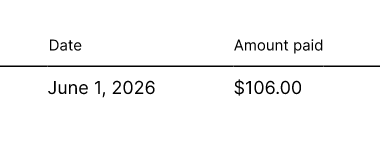
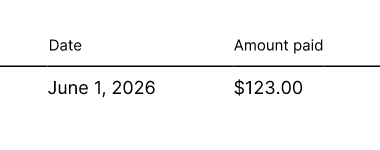
This example uses a cropped receipt row so the comparison shows only the edit, not the receipt's address or payment details. Papaya PDF lifted the source text, changed the selected amount, and wrote the result back through its PDF engine. The surrounding row stayed in place.
Two different kinds of PDF editing
A visual editor treats the page like a canvas. It may cover the old words with a white shape and draw new words on top, or rebuild the page from a new set of visual objects. That can be useful for a redesign, but it can also move neighboring text, change line breaks, lose the original font, or leave the old text underneath.
True text editing works on the PDF's text objects. The editor finds the source text, preserves the page around it, changes the requested characters, and writes a new text object that remains searchable and selectable. It does not need to repaint the whole page just to change one value.
How Papaya PDF handles the edit
Papaya PDF is built around a custom Rust PDF engine. When a source text region is editable, the engine can lift it into an engine-owned text box, keep the source font and visual backing, update the selected run, and export the result as a standard PDF. The browser supplies the editing intent, but the engine owns the text, layout, and saved output.
That does not mean every PDF is equally easy to edit. A scan is an image, not a text object. A heavily subsetted font may not contain the glyphs needed for a new value. A redesign still needs a visual editor. The important distinction is knowing which problem you have before choosing the tool.
The short version: visual editing changes what the page looks like. True text editing changes the text inside the page and preserves the rest of the document as carefully as the PDF allows.
When to use a visual editor
- Your PDF is a scan or image and needs OCR before text can be edited.
- You are redesigning the page, moving blocks, swapping images, or changing
the composition.
- You need to draw, annotate, sign, redact, or add a new object rather than
rewrite existing text.
Which should you use?
- Change a specific value and keep the page stable: Use Papaya PDF's
engine-backed text editing.
- Redesign a page or move visual elements: Use a visual editor and review
the resulting layout.
- Edit a scan: Run OCR first, then verify the recovered text before
exporting.
- Work with tables and tight columns: Prefer an editor that preserves
source geometry instead of rebuilding the page.